6.30.2016

How to Format Sony Vaio Laptop Windows 7 using Assist Button

" I've purchased Sony VAIO laptop with genuine Windows 7. If I want to format reset Windows, how can I do that? how can I write the installation files to a DVD? Is there any workable method to solve my problem?" Asked Ebin205 from Microsoft forum.

Have you ever encountered a problem with your Sony VAIO Windows 7 personal computer? If yes, then you can attempt to format reset it. This is the universal method you are able to use. The premise is that the data in your Sony computer is not so important or you have backup up data in it. Now let's see how to format reset Sony laptop Windows 7 using assist button as below.



Method 1: Format Reset with Sony VAIO Care

Step 1: Click the Windows "Start" button and select "All Programs." Open the "VAIO Care" folder and select "VAIO Care."
Step 2: Expand "Recovery & Restore." Click "Recovery" from the left pane and choose "Recover Computer" from the options.
Step 3: Click "Yes," when prompted, to restart the VAIO and boot to the recovery partition.
Step 4: Choose "Yes, I'd Like to Start Rescue Now."
Step 5: Follow the on-screen prompts to back up your data; otherwise, click "Skip Rescue."
Step 6: Click "Factory Condition" to reformat the hard drive and restore the VAIO to its factory default state, or click "Custom Recovery - Remove Recovery Contents," "Custom Recovery - Resize C: and Create D: Drive" or "Custom Recovery - C: Drive Only." Click "Next."
Step 7: Review your selections and click "Yes, I'm Sure" to proceed. Click "Start Recovery" to reformat the VAIO.
Step 8: Click "Restart" when the process completes.



Method 2: Format Reset via Sony VAIO Recovery Center

Step 1: Click the Windows "Start" button and select "Help and Support." Select "Backup & Recovery" from the options.
Step 2: Click "Launch VAIO Recovery Center" and select "Restore C: Drive" from under Choose a Program.
Step 3: Click "Start." Select "Skip" and click "Next." Select "I Understand" when the warning message appears.
Step 4: Click "Start" to reformat the Sony VAIO and restore the computer to its original state. Click "Finish" to restart the computer.

6.21.2016

How to Start Computer in Safe Mode Windows 10

To most Windows 10 users, how to enter Windows 10 safe mode is a trouble issues to them. So we can learn how to start computer in safe mode Windows 10 easily as below.

How to enter Windows 10 Safe Mode


Step 1: After entering the Windows 10 Click the Start menu and then click computer settings.
Step 2: Update and recovery, under Update and Recovery interface, click Restore, and then click the Advanced Boot below immediately start.

Step 3: Select Troubleshooting, to troubleshoot, click Advanced Options. In the Advanced Options, click Start settings, click the reset button. 
Step 4: At this point the computer will reboot your computer, you will see the screen as shown below after the restart. Click F4 to select digital is safe mode.

Step 5: Other models also use this method of selection, the selection directly into the future.
Here we enter safe mode Windows 10 can be disinfected or troubleshooting like.

How to start Windows 10 in Safe Mode using System Configuration


Step 1: To Press the Windows + R keys to open the Run dialog, type msconfig, and click/tap on OK.
Step 2: If prompted by UAC, click/tap on Yes.
Step 3: Here to click/tap on the Boot tab in system configuration, and choose one mode that you prefer to start Windows 10 in.

How to start Windows 10 in Safe Mode using Command Prompt


Step 1: Open an elevated command prompt or command prompt at boot.
Step 2: Type bcdedit in the command prompt, and press Enter.

Step 3: Under the top Windows Boot Manager section, look to left of default, and make note of its identifier.
Step 4: In the end, choose one mode that you would like to start Windows 10 in.

How to recover lost password on Windows 10 from using Windows Password Recovery 


Facing the trouble of password lost, we can use Windows Password Recovery to recover all versions Windows password in just 3 steps.
Step 1: Download and install Windows Password Recovery on any accessible computer.

Step 2: Using the prepared CD/DVD or USB disk to burn Windows password recovery on it, then insert the newly created disk to Windows 10 computer.
Step 3: Choosing the Windows 10 account that you lost password to recover the password, then restart the computer. The lost password successfully recovered.
We can learn more about how to fix the trouble case about starting computer in safe mode Windows 10 from above. You just need to choose which one is much easier for you.

5.31.2016

How to Access Toshiba Satellite Windows 10 Boot Menu

Toshiba Satellite is a kind of wonderful personal computer brand and since Microsoft update Windows system to Windows 10, it is more and more convenient for it to pe-installed in Toshiba laptop or desktop. There is no doubt that Toshiba with Windows 1o is a perfect combination. However, sometimes we need to access BIOS in Windows 10 of the Toshiba laptop, in order to change the BIOS setting. Consequently, here in this article we are about to focus on how to access Toshiba Satellite Windows 10 BIOS boot menu. You can't miss it!


In order to enter BIOS of Toshiba Satellite Windows 10, you need to distinguish 2 situations, one is your Toshiba can boot as usual, the other is your Toshiba can't boot all of a sudden. In these 2 situations, we will take different measure in coping with them. You can read them and follow the steps selectively, according to your specific circumstance.

Now you will see how to access Toshiba Satellite Windows 10 BIOS when your computer is able to boot normally as below.
Step 1: Click the Start menu in the desktop, on the left side of your computer. And then click the Settings menu, which is easy to find.

Step 2: After that, you will see the 9 submenu items of Settings, just click the Update &Security.

Step 3: In the submenu of Update & Security, choose Recovery from the left menu and then you will you will see its submenu.


Step 4: Click the Restart now of the Advanced startup. And then Toshiba Satellite is going to reboot and then access another interface.


Step 5: Now you can choose an option, click "Troubleshoot" and then the "Advanced options" in the next interface. Select "UEFI Firmware Settings" in the next option and then click "Restart" button. Eventually, your Toshiba Satellite will access BIOS. Then you will see the boot menu in Windows 10.


If your Toshiba Satellite Windows 10 can't boot normally, you can see how to enter boot menu as this: as different as the above situation, you need to restart the Toshiba computer which is not boot and then keep pressing F12 to enter the BIOS setting until the Boot menu appears.

Last but not least, you can also use Windows Password Key to reset Toshiba Satellite Windows 10 login password easily. It is really a nice Windows 10 password key to unlock local or Microsoft account login password.

5.23.2016

How to Fix Windows 10 Passcode Missing

As far as we know, when we lost Windows password, we will being locked out of computer. So how can we find lost Windows 10 password in efficient way. The method as below will teach us how to do that easily.

How to use Windows Password Recovery to fix Windows 10 passcode missing


Windows Password Recovery is such a popular Windows password recovery software on Google. It can help you reset all versions Windows password in 3 simple steps.
Step 1: Download and install Windows Password Recovery on any accessible computer.

Step 2: Preparing a useful CD/DVD or USB to burn Windows Password Recovery on it and then insert the newly created disk to Windows 10 computer.
Step 3: Choosing the Windows 10 account that you lost password, click recover to find lost password. After that, restart the computer. You can login successfully.


How to fix Windows 10 password lost


Many people now prefer to use Windows 10 systems, but the new system uses landing approach, different from before, when the previous user login using a local user, since Windows 8 started using Microsoft mailbox registered user login.

This one is unable to break the force needed to retrieve a Microsoft login password system Web site in order to reset the password.
Step 1: You need to use Microsoft's browser to open a specific URL to reset your password. The URL is- account live.com.

Step 2: Landing page appears, directly select the "Can't access your account," the column. Direct Select "I forgot my password".
Step 3: In the pop-up page, enter the password to retrieve mail account, then enter the test code - Next.

There was a need Points:
Option 1: If Microsoft has been bound mailbox security can be operated 2 steps as below.

Option 2: If there is no binding security mailbox, press 7 to 8 steps Operation 
Step 1: If there is a secure mailbox, the page will automatically show you bind security mailbox, click on the first item.

Step 2: Then enter the name of the mailbox will be asked to complete security mailbox, enter the correct, then click "Send code".
Step 3: At this time directly on the computer directly login to your secure mailbox, Microsoft sent the code to find the back page, select "I already have a verification code".

Step 4: After entering the code directly, if the test is correct, the page will pop up to let you enter a new password, set your password, the new password to log in directly.
Step 5: If security is not bound mailbox, you need to answer question.

Step 6: In Retrieve Password page, do not appear secure mailbox tips-bound, or their secure mailbox to forget, it would need to select "I do not have any of them" - the next step.
Step 7: Here the page will ask you to enter a password to get back the account, there is a link to your e-mail address.

Step 8
: Then lists a lot of problems, need you to answer, not necessarily the full answer, but the question to answer more detailed, the better for you to reset your password, and answer completed, click "Submit", and then wait patiently replied Microsoft . Send a reply message to the contact mailbox.

In the end, have you mastered how to fix Windows 10 password missing in easy way. If you can't acquire it correctly, you can read again. Good luck to you.

4.29.2016

Windows 10 Operating System Password is Missing, How to Fix The Issue

"I am really unhappy and unlucky because I lost my Windows 10 login password. How can I unlock it when the computer Windows 10 OS password is missing."

Did you set up the original administrator account using a Microsoft email address as your MSA (Microsoft Account), which is what I strongly recommend? If so, your logon password is the same as your email password, and this is something you might still remember. You might even have written it down somewhere. But how to unlock login password when your Windows 10 operating system password is missing, here we are about to talk it.


Way 1: Windows 10 Password Reset Disk


Step 1:At the Windows 10 login screen, click on your account, type your password incorrectly and attempt to log on. The "Reset password" link will appear just below the password field after a failed log-on attempt.
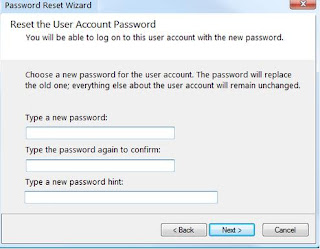
Step 2: When you click on the "Reset password" link, Windows 10 will start the Password Reset wizard as shown below. Insert your password reset disk and then click on Next.
Step 3: Select the password reset disk that contains the userkey.psw file, and click on Next.
Step 4:Type in your new password and password hint then click on Next.
Step 5: If successful, you'll receive a confirmation window saying, "You've successfully reset the password for this user account." Click on Finish to close the password reset wizard.
That's it. If you have already forgotten your Windows password and don't have a password reset disk, it's too late to create one. But you can still use the third-party software - Windows Password Key - to unlock your Windows 10 local/Microsoft account with a boot CD or USB drive.


Way 2: Windows 10 Password Key


Step 1: Download and install Windows Password Key from another laptop by clicking here, no matter which computer brand it is.
Step 2: Then use the flash drive to burn a bootable disc from that new computer.

Step 3: Insert the bootable disk to your locked Windows 10 laptop.
Step 4: Change your BIOS setting to start the laptop from your disk.
Step 5: Restart the laptop again, and then you can see the program interface. Just to rest the login password with the new one.

4.25.2016

How to recover Windows 10 forgot password since locked out

Locked out of Windows 10 since forgot password, take it easy. We can learn how to reset Windows 10 forgotten password in easy way. No matter lost or forgot password, we can login locked computer in quickest way.

Reset Forgotten Windows 10 user account password


Step 1: First you need to have a bootable Windows 10 launch of U disk. If you have not, you can download the latest Windows 10 Version 1511 images and press articles produced before Windows 10 installation U disk.
Step 2: Use the Windows 10 launch of U disk boot, in the first screen by pressing Shift + F10 to open a command prompt.

Step 3: The command prompt that opens the default work path is X: \ Sources, we need to find and navigate to the Windows 10 operating system installation partition. Typically the D: \ drive, everyone according to their actual situation, different environments may vary. After confirming the good Windows 10 operating system installation partition into the System32 folder.


Step 4: Next, we adopt the following command to replace cmd.exe files easily using the buttons on Windows 10 login screen corresponding utilman.exe, so you can get the privilege without login system to execute commands. Ren utilman.exe utilman.exe.bakren cmd.exe utilman.exe.
Step 5: At this point we can restart the computer.
Tip: You can use wpeutil reboot command to quickly restart.

Step 6: After restarting Windows 10 Well, when we click the button easily using the login screen, it will directly open the privileged command prompt. At this time, we will be able to activate Windows default super administrator account using the following command.
net user Administrator / active: yes.

When the user activates the Administrator, we can use it to sign in. The default system administrator privileges is very large and does not require a password. After you use the Administrator user logged into the system, you can reset the password for any local account, so it implements password recovery.

How to reset forgot Windows 10 password from using Smartkey Windows Password Recovery


Step1: Download and install Windows Password Recovery on your locked Windows 10 computer.
http://www.recoverlostpassword.com
Step2: Using a useful CD/DVD or USB disk to burn Windows Password Recovery on it. Then insert newly created disk to locked computer.

Step3: Starting Windows computer from the disk, then choose the Windows 10 account that you need to recover password. After that, restart your computer.
In several minutes after this simple 3 steps. You can login locked Windows 10 computer again.

In the end of reading that blog, having you mastered how to reset forgotten Windows 10 password in efficient way? If not, you can try to read again. Good luck to you.

3.31.2016

How to Speed up Internet Connection in Windows 10

I think you have already updated the OS to Windows 10. Microsoft has managed to come up with an excellent Windows operating system after the Windows 8 struggling. The latest version of Windows has got massive popularity by allowing Windows 7, 8 and 8.1 users a free upgrade.

Nowadays more than 18 million people using Windows 10 on their laptop and Desktop. Around more than 14 million user use Internet daily basis for their office and personal Works. Windows 10 has many useful and unique features. I have successfully upgraded my system and found it worth. If you are still hesitant to do the same, do it now. It will not affect your system badly. Instead, the booting time shut down time, and the performance will be improved by leaps.


A lot of people are complaining about slow internet speed on Windows 10 and that is washing their brains against this. According to the complainers, when they unplug their Windows 10 enabled PCs from the internet, the speed on other computers boosts to maximum. So, they don’t know what is causing the internet to slow down on Windows 10.

Reasons about Windows 10 Slow Internet


The major reason for this is the Windows update that is downloaded and shared by Windows to other users through a P2P connection in order to lessen the bandwidth for Windows updates. This is a unique system introduced by Microsoft in Windows 10 for the purpose of facilitating its users.

The other reason might be the network adapters causing the connection to slow down on Windows 10. So, the following methods will help you in figuring out the problem and solving it.

Is there any proper way to Increase the Internet Speed in Windows 10?


Here we are going to Discuss about how to speed up internet connection in Windows 10 machine And there is no other way to increase internet Speed. After doing a long research I found this trick over the Internet to Boost up the Internet Speed in windows 10, which is to make use of Tenorshare Windows Care Genius.

Tenorshare Windows Care Genius is a first-class Windows PC care tool that enables you to keep your personal computer clean, to speed up the Internet connection, to clean registry and also to optimize your Windows machine. It has five big functions, which are PC Checkup, System Cleaner, System Tuneup, Privacy Protector and System Monitoring.

How to Speedup the Internet Connection in Windows 10


Here you can see how to use one of the functions to speed up Internet connection in Windows 10 as below.

Step 1:Download and install this Windows Care Genius from http://www.tenorshare.com and then double click to open it.
Step 2: You can see the whole user interface in your eyes. Just choose the System Tuneup and then to enter system speedup center.
Step 3: And then you will see the Network Speedup. Select them all and then click the Optimize button. Then it will speed up the Internet connection of your Windows 10.